
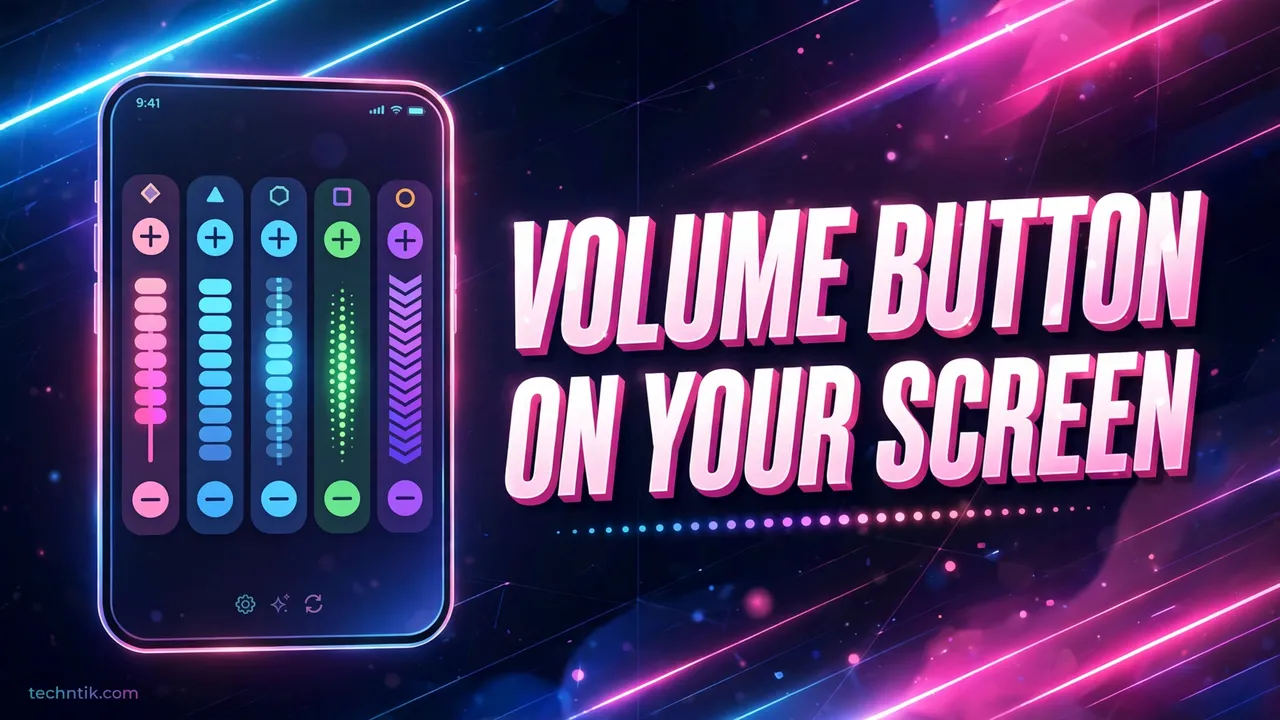
The volume down button on my phone died on a Tuesday. Not all at once. It had been getting stiffer for weeks, and then one morning it just stopped clicking. The volume up button still worked, but when a video played too loud, I had no way to turn it down without opening the settings.
I looked for a repair quote first. The shop wanted more than the phone felt worth for one small button, and the phone would sit with them for two days. So I searched the Play Store for another way. I found Assistive Volume Button, and before I trusted it, I read the official download page line by line, the same habit that saved me when I checked those data selling apps.
What I found was a simple idea done well, with a few rough edges. The app does one job: it gives you volume buttons on your screen when the real ones stop working. Here is how it went, what I liked, and where it falls short.
When My Volume Buttons Gave Up
My phone is not new. It has been dropped more times than I can count, and the buttons took the worst of it. The power button still works. The volume up button still works. But the volume down button got mushy, then stiff, then dead.
That sounds like a small problem until you live with it. A loud ad starts in the middle of the night and you cannot turn it down. A call comes in during a meeting and the ringtone keeps going. Opening Settings every time takes five taps, and the moment is already gone.
I tried the obvious fixes first. I cleaned around the button. I restarted the phone. I even pressed it harder than I should have, which fixed nothing and probably made it worse. The button was not a software problem. It was a tired piece of hardware, and no setting was going to bring it back.
What the App Actually Does
Assistive Volume Button is made by a developer called Store Tiki. It is free, it sits in the Personalization category, and more than 100,000 people have installed it. Its rating is about 3.9 from just over 1,300 ratings, decent for a small app.
The idea is simple. The app shows volume buttons on the edge of your screen, floating over whatever you are doing. Tap plus and the volume goes up. Tap minus and it goes down. You can drag the buttons anywhere along the side edge, so they sit where your thumb naturally rests.
There is also a slider. When you tap the button, a volume slider appears, so you can drag to the exact level instead of tapping ten times. I use the buttons more, but the slider is there when I want a big jump.
You can also change how they look. The size, the colour, the transparency, and the style are all adjustable. There are styles that look like iOS and MIUI, and the latest update added 20 more, including Anime, Lovers, and AI and Tech themes. I picked a simple dark style.
One warning before you install it. There are three apps on the Play Store with the name Assistive Volume Button. The one I tested is by Store Tiki. Check the developer name on the page before you install anything, because the others are different apps with different ratings.
How I Set It Up
The setup took five minutes. Here is exactly what I did.
Step 1: I installed the app from the Play Store and opened it. It asked for permission to draw over other apps, which it needs because the buttons float on top of your screen. I allowed it.
Step 2: I picked a style. The app shows a list of button styles, and I chose a plain dark one. You can preview each style before you pick it.
Step 3: I placed the buttons on the right edge, near the middle of the screen, where my thumb sits when I hold the phone. You drag them to the spot you want and they stay there.
Step 4: I set the size to medium and the transparency to about half, so the buttons are visible but do not cover the content underneath.
Step 5: I tested them in a video, in a call, and on the home screen. The volume changed each time, and the buttons stayed where I put them.
That was the whole setup. No account, no sign in, no tutorial that goes on forever.
What I Liked After a Week
The first thing I liked is that it just works. The buttons respond instantly, and the volume changes the same way it did with the physical keys. After a day, I stopped reaching for the dead button entirely.
The second thing is the placement. My thumb rests on the right edge of the screen anyway, so the buttons are exactly where I need them. I can turn the volume down in a meeting or in the middle of the night without looking at the screen.
The third thing is the look. I expected a floating button to feel cheap, but the dark style I picked blends into the screen. It looks like it belongs there, not like a sticker someone slapped on.
The fourth thing is the price. The app is free, and it does not ask for anything in return. No account, no subscription, no locked features in the version I tested.
Where It Falls Short
The app is not perfect, and the problems are worth knowing before you install it. The biggest one is landscape mode. When I turn the phone sideways for a video, the buttons do not sit on the edges. They drift toward the middle of the screen, about a fifth of the way in, and sit on top of the video. Other users have reported the same thing.
The second problem is privacy. The app’s data safety page says it may share your device ID with third parties. It says it collects no data itself, but the sharing line is there, and you should know about it before you install. A volume button app does not need to know who you are.
The third problem is the permission itself. The app needs permission to draw over other apps, and that permission is powerful. It is the same permission any floating app needs, and it matches what the app does. Still, if you are not comfortable with an overlay permission, this app is not for you.
The fourth problem is size. With only about 1,300 ratings, this is still a small app. The rating of 3.9 could move a lot as more people try it. It is not a red flag, but it is not a settled reputation either.
Mistakes to Avoid
The first mistake is installing the wrong app. Three apps share this name on the Play Store, and only one of them is the Store Tiki version I tested. Check the developer name on the page before you tap install.
The second mistake is making the buttons too big or too solid. At full size and full opacity, they cover part of your screen and get in the way. Start at medium size and half transparency, and adjust from there.
The third mistake is placing them in the middle of the screen. They belong on the edge, where your thumb rests. In the middle, they block what you are reading or watching.
The fourth mistake is expecting a repair. This app replaces the function of your buttons, not the buttons themselves. If your volume keys are dead, they stay dead. The rule I follow before I download anything that fixes a hardware problem is simple: I check what it actually replaces, and I decide after reading the page, not after watching a video. It is the same habit I used when I tested a photo recovery app, and it has not let me down yet.
Would I Keep It on My Phone
Yes, for as long as this phone lasts. The app does one job and does it well enough that I forgot my volume button was broken. The landscape problem is annoying, but I watch most videos in portrait anyway, and the buttons behave there.
If your volume buttons still work, you probably do not need this app. But if one of them is dead or dying and a repair costs more than the phone is worth, this is a free fix that takes five minutes. Try the dark style first, keep the buttons small, and check the developer name before you install.
My phone is old, its buttons are tired, and a floating button on the edge of the screen gave it a second life. That is a fair trade for a free app, and it is why the button is still on my screen today.
1 thought on “I Replaced My Broken Volume Buttons With a Floating Button on My Screen”