
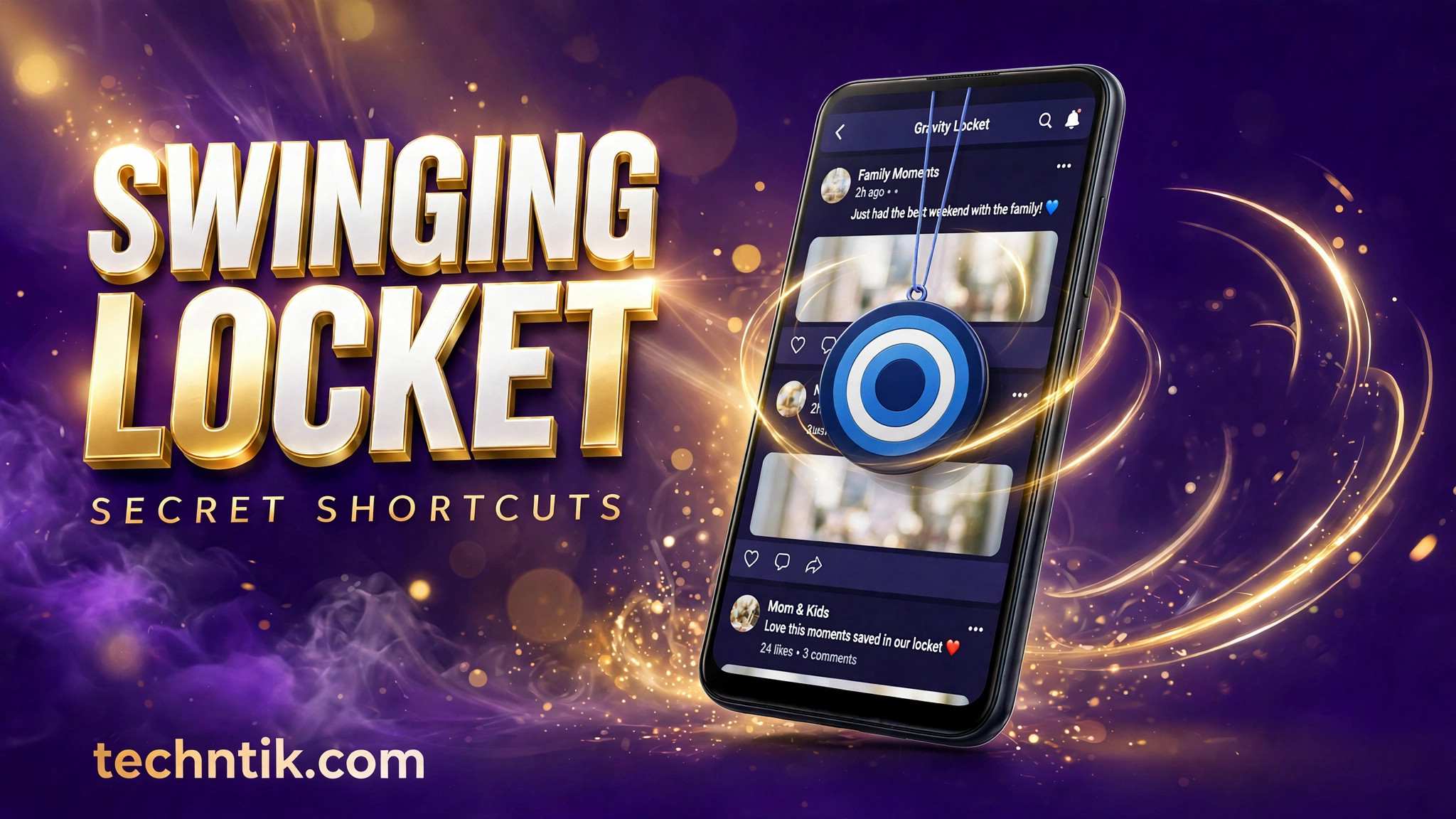
My phone screen had become boring in the most normal way. Same icons in the same grid, every single morning. Then a short video crossed my feed where a small round photo was hanging from the top of a phone screen, swinging left and right like a tiny locket on a thin chain. The boy tilted the phone and the locket tilted with it. He tapped it once and his favourite app opened. I was hooked in about four seconds.
The app behind that little trick is called Gravity Locket. It is free, it has crossed 100,000 downloads on the Play Store, and it is made by the developer Shagun Verma, whose team also made the Picture AppLock app many people already know. I set it up with a photo of my own, and this is the honest story of what it does and the small mistakes that can spoil the fun if you rush it. And if you prefer your screen tricks serious instead of cute, you can also download the Time Lock app from my other article, where the clock itself becomes the PIN.
What This Tiny Hanging Photo Actually Does
Gravity Locket places one small photo on your screen and lets it hang there, above your home screen and above your other apps as well. It is not a wallpaper or a fixed widget. The locket stays floating on a thin thread from the top of the screen, and it moves the whole time your phone moves.
That movement comes from a small sensor inside almost every Android phone, the accelerometer. In simple words, this sensor knows which way your phone is leaning. The app reads it again and again and uses it like gravity inside the screen. Lean left and the locket swings left. Shake the phone and it bounces, then settles slowly.
The locket is not only decoration, though. It is also a shortcut button in disguise. You can tell it which app to open when you tap it once, which app to open when you tap it twice, and what to do when you pull it down with your finger. So the same cute photo also works like a tiny remote control for the apps you open all day.
Setting It Up Took Me A Few Calm Minutes
The setup is simple, but it goes best when you do it slowly.
Step 1. Install Gravity Locket from the Play Store and open it. The app is small, only a few MB, so the download finishes quickly even on a slow connection.
Step 2. The app will ask for the permission to display over other apps. This step confuses many people. A floating locket can only float if Android allows it to draw on top of other apps. Without this permission, nothing appears on your screen and you will think the app is broken, when only the permission is off.
Step 3. Choose the photo for your locket. Most people pick a face they love, a child, a partner, a pet, or their own picture. Pick a clear photo where the main face sits near the middle, because the next step cuts it into a shape.
Step 4. Choose the shape of the locket. You can crop your photo into a circle, a rounded square, a pentagon or a star. The circle looks the most natural. The star looks loud and fun.
Step 5. Adjust the size, the thread length and the position. Medium size with a medium thread worked best for me.
Step 6. Set your three gestures, one app for a single tap, one for a double tap and one for the pull down action. Then turn the locket on and go back to your home screen. It should be hanging there, swinging gently.
Three Small Gestures Do All The Work
This is the part that turned a decoration into something genuinely useful for me. I set my single tap to WhatsApp, the app I open the most in a day. My double tap opens YouTube. Pulling the locket down opens Instagram. Think of a normal moment. I am reading in my browser, a message comes to mind, and instead of going home and hunting for the icon, I tap the swinging locket once and I am in WhatsApp.
The double tap takes a day to enter your muscle memory. On the first day I kept single tapping by habit and opening the wrong app. By the second day my thumb had learned the rhythm. One tap for chats. Two quick taps for videos. A small pull down for the feed. The saving sounds tiny, but we unlock our phones so often that it feels bigger than it sounds.
One honest warning belongs here. Choose your gesture apps with a cool head. A private app on the single tap means anyone holding your phone can open it with one touch on a cute photo. Treat the gestures like home screen shortcuts, quick doors, not safe rooms.
Looks Are Fully In Your Hands
Two people can use this same app and end up with phones that look nothing alike. The photo changes everything, the shape changes the mood, and even the thread length changes how playful or calm the swing feels. A short thread gives a tight, small swing. A long thread gives a slow, lazy swing.
My best result came from a bright photo with one clear face, cropped as a circle, on a medium thread near the top centre of the screen. Busy group photos did not work as well, and dark photos looked heavy on a light wallpaper. If your first try looks odd, change the photo before you judge the app.
Two Smart Habits I Did Not Expect
Small apps like this usually forget about battery and privacy, so two details honestly surprised me. First, the locket is built to rest when it should. The developer says the physics pauses and the locket hides itself when the screen turns off, when you open secure apps, and when the phone goes into landscape mode for videos or games. That last one matters. A locket swinging over a full screen video would drive anyone mad.
Second, the developer says your photo and the sensor movement are processed on the phone itself, and that the app does not collect your personal app usage or your shortcut choices. I cannot prove what happens inside its code, and no honest review should claim that. But the claim is written clearly on its Play Store page, and the app asked only for the overlay permission, which it truly needs.
About the rating, one honest line. This app is very new, it arrived in August, and its rating is still settling because reviews are few right now. So I am not going to throw a shiny rating number at you. The downloads tell the clearer story. More than 100,000 people have installed it, most of them in the last few weeks.
Small Mistakes That Can Spoil The Fun
Mistake one, skipping the permission. If the locket never appears, nine times out of ten the display over other apps permission is off. Allow it before you think of uninstalling.
Mistake two, making the locket too big. A huge locket looks fun for one hour. Then it starts covering buttons, names and text in your other apps, and the fun turns into daily irritation. Medium size is the sweet spot.
Mistake three, choosing the wrong photo. Edge faces, dark photos and busy group pictures look weak inside a small shape. One clear face in good light will always win.
Mistake four, setting all gestures in a hurry. If you assign apps randomly, you will open the wrong app all day and blame the locket. Think for one minute about the three apps you truly open the most. Those belong on your gestures.
Mistake five, expecting a lock. The word locket sounds like lock, but this app does not lock or hide anything. It is a floating shortcut and a decoration. For a real lock that changes every minute, you can download the Time Lock app instead, because it turns the current time into your PIN.
Should You Hang This On Your Screen?
If you enjoy personalising your phone and you open the same three apps all day, I think you will enjoy this more than you expect. The swing makes the screen feel alive, the photo makes it personal, and the gestures quietly save you small trips to the home screen. It is free, it is light, and it takes only a few minutes to try.
If you like a perfectly clean and serious screen, skip it without guilt. This is a joy app, not a need app, and it knows it.
For me, the locket stayed. Every time I pick up my phone and the little photo swings to one side, it makes me smile for half a second, and then one tap puts me where I wanted to go. If you want to try it, the download button below takes you straight to the official page of Gravity Locket on the Play Store.
2 thoughts on “I Put a Photo Locket on My Screen and It Moves Every Time I Tilt My Phone”