
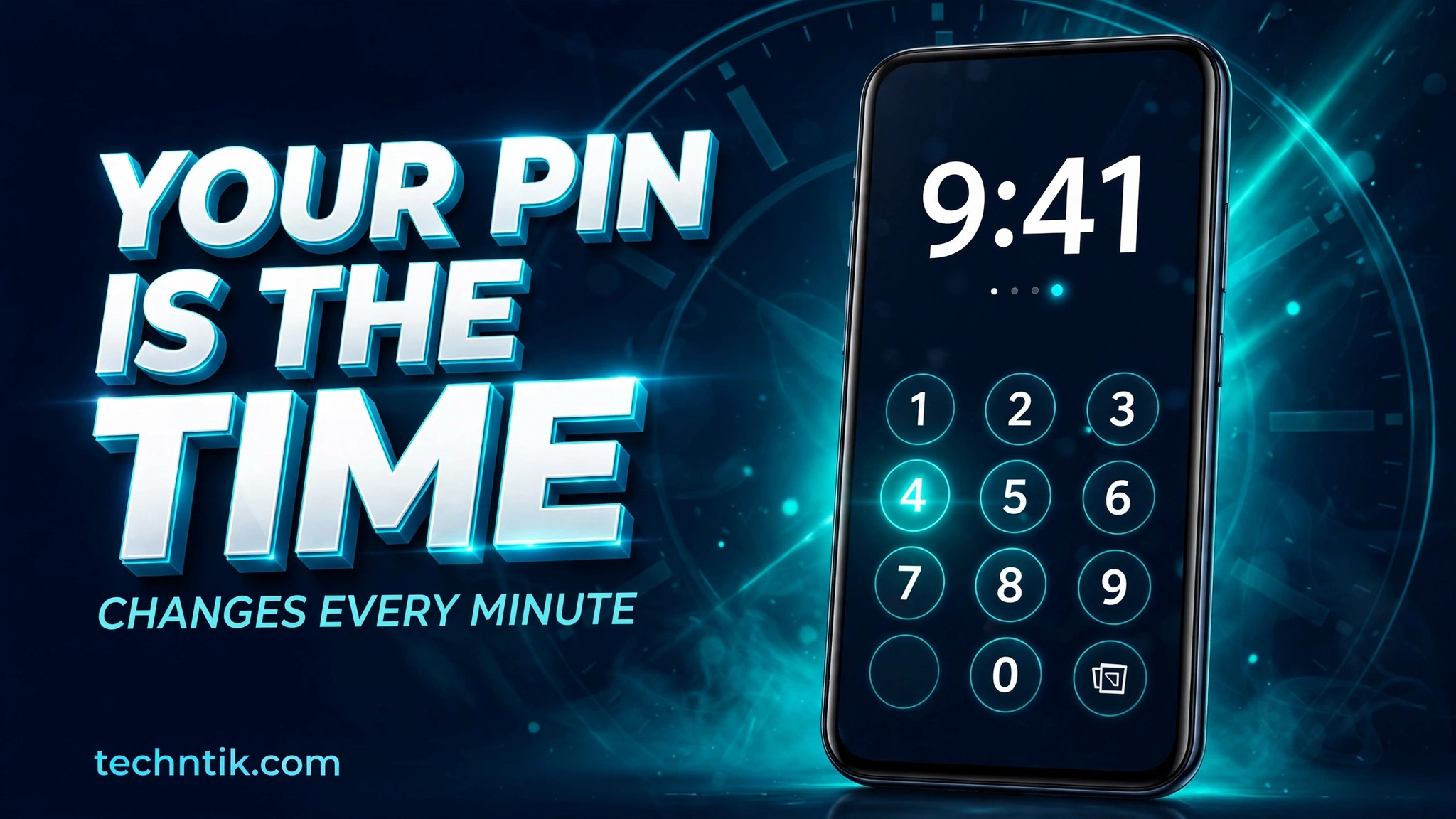
Last week at a small shop, I paid for my things, picked up my phone and typed my PIN without even looking at the screen. Behind me, my younger cousin smiled and calmly said my four digits back to me, in the right order. He had watched my thumb for about three seconds. No hacking, no skill, just eyes.
That night I went looking for a lock that cannot be copied by watching, and I found the app most people call Time Lock. Its real name on the Play Store is Screen Lock Time Password, it is made by Adria Devs, and more than 10 million people have downloaded it, with a 4.3 rating from more than 150,000 ratings. The current time becomes your password, and because the time changes every minute, your password changes every minute too.
My phone screen has been in an experimental mood lately. A few days ago a photo locket was swinging on it, and if you missed that one you can still download the locket app from my previous article. This week the experiment is serious, because this time the lock itself is the trick.
A Fixed PIN Has One Weakness, It Never Changes
Think about your own PIN for a second. Most of us picked it years ago. It is often a birthday, a lucky number, or the same code we use in three other places. And we type it in buses, in shops, at the office desk, with people standing close enough to see every tap.
A fixed PIN only has to leak once. One clear look over your shoulder, and that person owns your code forever, because the code will still be the same next month. A changing password attacks exactly this weakness. Even if someone watches you unlock today, what they saw is useless a minute later.
How The Clock Becomes Your Password
The default mode is called Current Time, and it needs almost no learning. If the clock on your screen says 09:41, your PIN is 0941. One minute later the PIN is 0942. The app’s own example is the same idea, at 01:47 the PIN is 0147. You never have to remember a code again, because the screen is already showing it in big digits.
My first day with it had one funny moment. I started typing just as the minute was about to change, the clock flipped half way through, and the phone rejected my code. For a second I felt locked out of my own phone. Then I looked at the new time, typed the new digits, and it opened. The lesson is simple. Always read the time first, then type.
Time Lock supports both the 12 hour and the 24 hour format. Pick the one your brain reads faster. A lock you have to decode in your head is a lock you will hate by the third day.
Six Lock Types, From Simple To Sneaky
Time alone is the famous mode, but Time Lock actually gives six ways to build your password.
Current Time is the pure trick, the whole password is just the clock. Plain PIN is a normal fixed code, for people who only want the iPhone style lock screen. PIN + Minute mixes a secret part with a moving part. You choose secret digits, and the app adds the current minute. The developer’s example says it clearly, if your digits are 12 and the time is 01:45, your PIN becomes 1245. A watcher sees four digits, but only two stay true.
PIN + Current Time is the longest recipe. Your secret digits join the full time, so digits 45 with the time 02:37 make the six digit code 450237. PIN + Day joins your digits with today’s date, changing once a day, a calmer option for people who unlock less often. PIN + Hour joins your digits with the current hour, sitting nicely between the two.
My honest pick for most people is PIN + Minute. Pure time feels too open once people learn the trick, and six digits feel slow fifty times a day. Two secret digits plus the moving minute is the sweet middle.
Setting It Up Without Locking Yourself Out
Step 1. Install Screen Lock Time Password from the Play Store and open it. Start with the Current Time mode for the first day, even if you plan to move to a mixed mode later.
Step 2. Give the permissions the app asks for. The important one is the permission to display over other apps, because the lock screen has to draw on top of everything. Without it, nothing will show.
Step 3. On a Xiaomi or Redmi phone, do one extra thing the app’s help page insists on. Open the Security app, allow all permissions for this app, and turn on its Auto Start, or the lock quietly stops after a restart.
Step 4. Set up the password recovery option right away, on day one.
Step 5. Test the lock five times in a row at home, with no pressure. Watch the minute change once on purpose and unlock with the new code.
Step 6. Make the screen yours. Pick a wallpaper, add the sliding text with your name if you enjoy that iPhone style touch, and set the unlock sound and vibration as you like them.
One rule sits above all these steps. Keep your phone’s own system lock switched on underneath. Time Lock is a clever extra layer on top of Android, not a replacement for the lock your phone was born with.
Two Extras Hiding Inside, A Vault And A Private Browser
I expected a lock screen and nothing more, so two extras surprised me. The first is a Vault, a private place inside the app where you can hide photos and videos away from your normal gallery.
The second is a Private Browser, which promises to leave no traces of what you browsed. It is no magic, but it is handy for quick private searches.
One serious warning belongs to the Vault, and it comes straight from the developer. If you ever uninstall this app, restore your hidden files back to the gallery first. Files left inside the Vault can be lost forever when the app goes.
Small Mistakes That Can Cost You
Mistake one, uninstalling with files still in the Vault. This is the costliest one, and the warning above exists because people have done it. Restore first, uninstall second.
Mistake two, switching off the phone’s real lock. Time Lock is a layer. Layers are strong together and weak alone. Keep the system lock active underneath it.
Mistake three, skipping Auto Start on Xiaomi phones. The lock will work beautifully until the first restart, and then it simply will not be there, and you may not notice for days.
Mistake four, forgetting which recipe you chose. PIN + Day feels easy on Monday and confusing on a sleepy Sunday. Write your chosen lock type on a paper at home if your memory plays tricks.
Mistake five, announcing the trick to everyone. The day you proudly explain your time password to the whole office is the day it becomes a normal password everyone can work out.
The Honest Limits Before You Trust It
Now the part no hype video will tell you. If someone knows that you use Time Lock, and knows which of the six recipes you picked, that person only needs a clock to work out your code. The real protection here is not mathematics. It is that the people around you do not know the method. Against the common danger, the casual watcher in the shop or the bus, that protection is real.
It is also fair to remember what this app is. A free app with ads, sitting on top of Android as an extra screen. There is an option to remove the ads. It asks for strong permissions because a lock screen cannot work without them, so install it only from its official Play Store page, never from random sites.
Used with open eyes, it earns its place. And if all this security talk feels heavy, you can download the Gravity Locket app from my previous article and let a photo swing instead of guarding the gate.
Would I Let The Clock Guard My Phone?
As the only lock, no. As an extra lock for daily life in public places, yes, and that is how I am using it now. My cousin tried his party trick again two days later, watched my thumb like a hawk, announced the digits proudly, and they were already wrong. That moment sold the whole idea to me better than any feature list.
If you unlock your phone around other people every day, this is one of the simplest free upgrades you can make. The download button below takes you straight to the official page of Screen Lock Time Password on the Play Store.
3 thoughts on “I Set Time Lock On My Phone And Now The Clock Decides My PIN”