
My home screen used to look like a drawer nobody had cleaned in a year. Three full screens of icons, two folders named “Stuff” and “More Stuff”, and widgets I never looked at. Every time I needed an app that was not on the first screen, I would swipe, scan, swipe again, and by the time I found it I had forgotten why I picked up the phone.
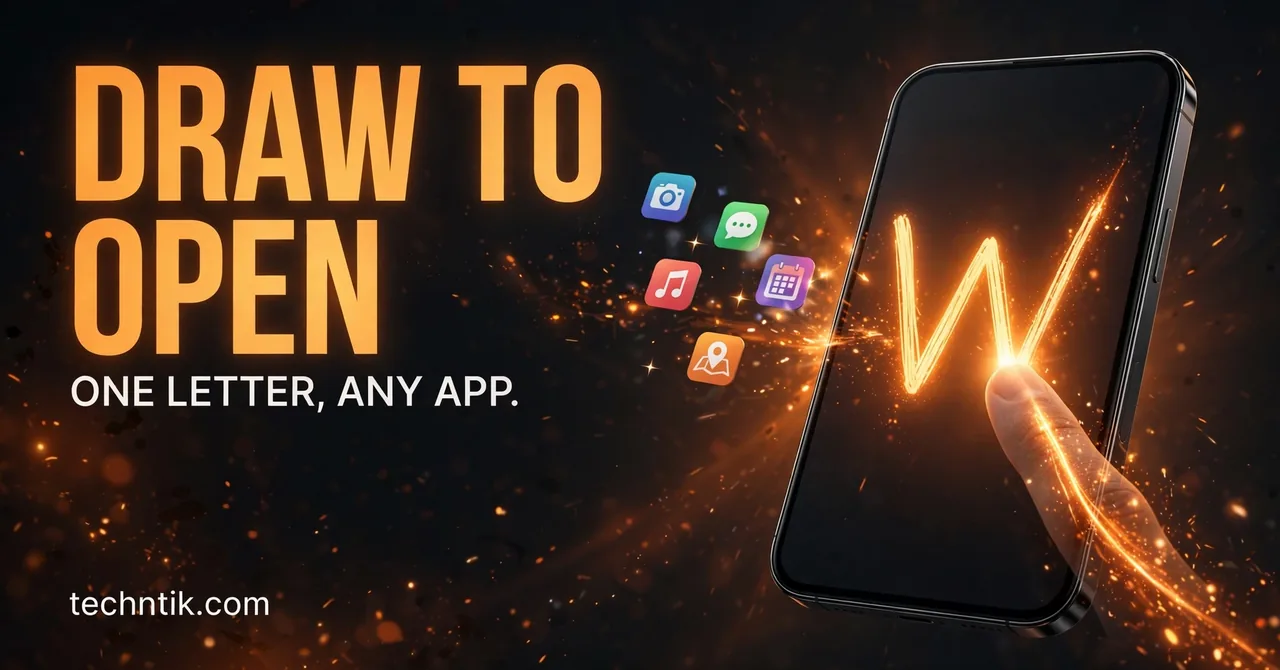
That is what made me try a different idea: what if I just drew a letter on the screen and the app opened? That is exactly what the Gesture app does, and after a week of using it I have deleted most of my home screen shortcuts. If you like small tools that change how a phone feels, the download of my Picture Lock writeup shows another one that changed a daily habit for me in a similar way.
Why My Home Screen Was Slowing Me Down
The problem was not that I had too many apps. Most of us do. The problem was that opening an app took three or four small steps, and each step was a chance to get distracted. I would unlock the phone to check a message, see a red badge on another app, open that instead, and five minutes later I would be watching a video I never planned to watch.
Shortcuts were supposed to fix this, but they made the screen busier. I tried folders and a minimal look, and each setup worked for about two days before the icons crept back. What I wanted was one shape, one action, and no menu in between.
What the Gesture App Actually Does
Gesture is a free Tools app by DogPoo, downloaded more than five million times on Google Play. Its rating sits around 3.9 from over ten thousand ratings, which is decent but not glowing, and I will come back to that honestly later in this article.
The idea is simple. You draw a shape on your screen, like the letter W or a circle, and the app runs the action you tied to that shape. It can open any app, make a call, take a screenshot, turn on the flashlight, or change a setting. You can also tie several actions to one gesture, so a single drawing runs a small sequence.
You reach the drawing area two ways: a floating button that sits on top of other apps, or a side panel you pull in from the edge. Both are always available, so you can be inside any app, draw your letter, and jump straight to the next one. The app is only about 11 MB.
Before you install it, know this: the app asks for Accessibility permission. That is a powerful permission, and it is what lets the app perform touches, take screenshots and open Recent Apps on your behalf. The developer states in the Play Store listing that it does not collect, store or send personal information, passwords or payment details through this permission, and that it only does what you set up yourself. I read that disclosure before installing, and you should too.
How I Set It Up in a Few Minutes
Setup took me less than ten minutes.
First, install the app from Google Play and open it. Turn on the Accessibility service for Gesture in your phone settings when it asks, and come back to the app.
Second, look at the gesture list inside the app and tap the add button to create a new gesture.
Third, draw your shape on the blank canvas. Keep it simple. A single clear letter works better than a fancy shape, because the app has to recognise it every time, even when you are in a hurry.
Fourth, pick the action for that gesture. Choose an app to open, a contact to call, or a system action like taking a screenshot. Save it and give it a name you will remember.
Fifth, turn on the floating button or the side panel. I started with the button, then switched to the panel because the button kept covering buttons inside other apps.
Sixth, test each gesture a few times before you trust it. Draw it slowly, then fast, then with one hand. If the app guesses wrong even once, redraw it and save it again.
The Gestures I Use Every Day
After a week, I settled on five gestures and I have not changed them since. They cover almost everything I used to do through icons.
I draw a W and my messaging app opens. This is the one I use most, because half the time I pick up my phone it is to reply to someone.
I draw a C and the camera opens. It earned its place on the second day, when I needed a quick photo of a shop sign.
I draw an S and the phone takes a screenshot, which replaced the two button press I always got wrong.
I draw an M and my music app opens, and I draw a circle to open Recent Apps and jump back to what I was doing. Between these five, my first home screen now holds only the clock, the weather and four apps I open by habit anyway.
I also tried the multi action feature: one gesture turns on silent mode and opens my reading app at the same time. It worked on the first try.
Where It Gets Annoying
I like this app, but I would not be honest if I skipped the rough edges, and they explain why the rating is 3.9 and not 4.5.
The free version shows ads inside the app, and some extras are paid. Nothing essential is locked away, as far as I could tell, but if ads bother you, know this before you install.
The Accessibility permission will make some people uncomfortable, and that is fair. It is a strong permission, and even with a clear privacy statement, you are trusting the developer. My rule is simple: I only grant it to apps I use every day.
There is also a learning curve. For the first two days I kept forgetting my own gestures and opening the app to check the list. It took about three days before drawing a W felt natural.
Very complex gestures, like a star or a zigzag, got misread more often than simple letters, so I stopped using them.
Mistakes I Made in the First Week
My first mistake was creating too many gestures on day one. I made twelve and could not remember half of them. Five gestures I use daily beat twelve I keep forgetting.
My second mistake was choosing shapes that looked too similar. I had a V for one app and a tick mark for another, and the app mixed them up constantly. Simple letters that look nothing alike work far better than clever shapes.
My third mistake was keeping the floating button where the send button sits in my chat app. I tapped it by accident until I moved it to the left edge. The side panel fixed this completely.
I also skipped the test step for one gesture, and found out in the middle of a call that it opened the wrong app. Testing each gesture a few times takes thirty seconds and saves real embarrassment. If you enjoy this kind of hands on phone trick, the download in my AirTouch article covers a different way to control a phone without touching the screen at all, using the front camera instead of drawn shapes.
Would I Keep It on My Phone?
Yes, and it has already survived the test that kills most apps for me, which is the one week mark. Most tools I try get deleted within days because they add steps instead of removing them. This one removed steps. My home screen is cleaner, I open apps faster, and I get distracted less.
That said, it is not for everyone. If your home screen is already tidy and you only use a handful of apps, you will not feel much difference. If you are not comfortable granting Accessibility permission, you should skip it, because the app cannot work without it. And if you want a tool that works perfectly from the first minute with no learning, this will frustrate you for a day or two.
For me, the trade is worth it. Five letters now do the job that three screens of shortcuts used to do. The Gesture app is free on Google Play, it is small, and it takes ten minutes to set up. Try it with two or three gestures first, and you will know within a week whether it deserves a permanent place on your phone.
1 thought on “I Replaced My Home Screen Shortcuts With One Gesture App and It Feels Faster”